
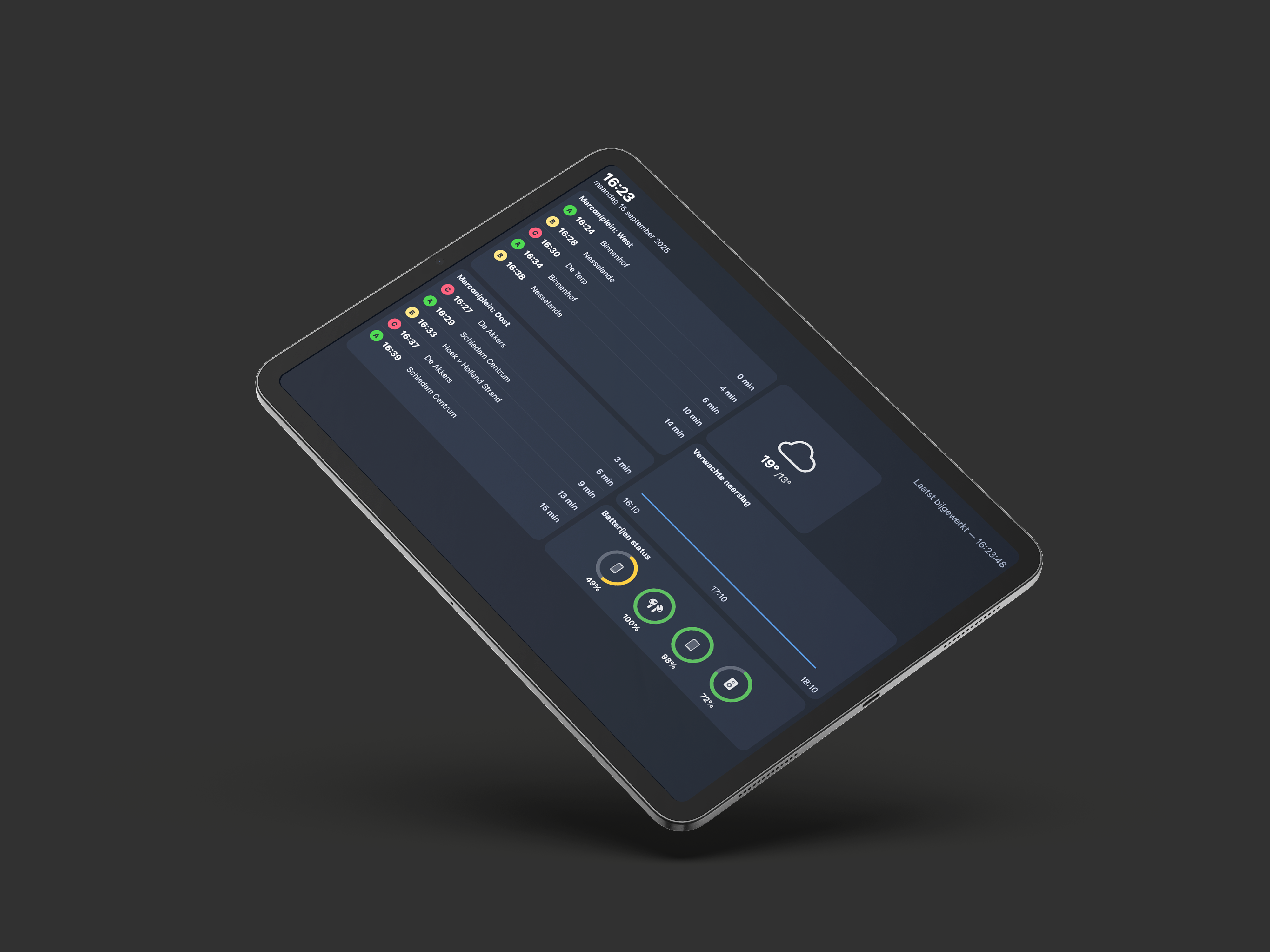
Since I moved to an apartment with a subway station right across the street I wanted to build an app to see all departures from this station. Initially I wanted to build this with an e-ink display, but when I found an old iPad mini laying around I figured I could make it more useful as a whole.
I decided I wanted a dashboard to provide me with all information I need before I leave the house:
- Public transport departures
- Temperature (including minimum temperature so I know if I should pack a coat if it cools down at night)
- Precipitation graph
- Device batteries (so I know if I should charge my speaker before leaving)
First Attempts
My initial idea was to use Home Assistant's Lovelace dashboards. Just click and drag a bunch of sensors and widgets to my needs. I was quickly met with my old iPad's firmware limitations, though. Home Assistant wouldn't load on the older versions of Safari or Chrome available on iOS 9, so I had to start from scratch.
I soon decided on AppDaemon, another dashboarding tool often combined with Home Assistant. Every widget I built, however, was limited by my old firmware. The precipitation graph that's readily available as an embeddable widget from Buienalarm, for example, wouldn't load. So instead I had to use the JSON data from their API and build my own graph in HTML and CSS.
Subway Departures
The first widget I tackled was departures. I had actually made an app for this before, which scraped departure times from 9292ov.nl. That worked fine for a while, but after they changed their site, scraping was blocked. That's when I realized something I should have considered much earlier: there are public transport APIs.
Switching to OVAPI meant I no longer needed a custom scraping server. Instead I could use Node-RED to fetch the JSON directly and feed it to my dashboard. Getting the data was easy, but iOS 9 had strict mixed-content rules: no HTTP if the dashboard ran on HTTPS. I ended up running the API through a proxy so the iPad would accept the data. To keep rendering lightweight, I only updated rows that changed instead of re-drawing the whole list every refresh.
Temperature
Next up was temperature. Home Assistant already tracked inside and outside temperature, as well as minimum and maximum for the day. I built a simple widget that displayed the current value in large type and the min/max below. On such an old browser, the trick was to keep the layout dead simple: no CSS grid, just nested flexboxes with vendor prefixes.
Precipitation Graph
This was the biggest hurdle. Buienalarm has a ready-made widget, but it relied on modern JS. I pulled their JSON instead and plotted the values as a simple inline SVG graph. At first I tried to cache long histories, but the iPad ran out of memory. Limiting the graph to about 20 data points kept it stable.
Battery Indicators
Finally, I wanted to know if my devices had enough charge. Home Assistant exposes battery levels for most devices as sensor.*_battery. I mapped these to a simple icon + percentage. Below 20% the widget turned red with a “LOW” label. The hardest part here wasn't the code but the inconsistent entity names across devices—so I kept a small mapping file to make sure the right sensors were shown.
A Small Extra: Jailbreak
Because I jailbroke the device, I can also reach it over SSH. That gave me the ability to simulate button presses through Home Assistant automations. The iPad now locks and unlocks automatically based on the door sensor state. It's a small feature, but honestly the one I love the most—it makes the dashboard feel integrated with the rest of the house instead of just a display.
In the end, the old firmware even worked to my advantage. Jailbreaks are widely available for iOS 9, which made this kind of customization possible. What started as a limitation ended up being one of the best parts of the project.
Conclusion
One by one, the widgets filled the screen. The dashboard ended up being less about visual polish and more about stripping things down until they actually worked on a 2012 device. No animations, no fancy transitions, just a dark background, legible fonts, and reliable updates.
Now the iPad sits by my door, always on. Before leaving I can see when the next metro leaves, whether I need a jacket, if it's about to rain, and whether I should plug in a device before I go.
It's a small project overall, but it turned a useless old tablet into something genuinely helpful.